“Snabel a” is the Swedish name for the at sign (@), and it’s one of those tiny characters that can halt a workflow when the keyboard layout disagrees. This guide shows concise, practical methods to type @ on Windows, macOS, Linux, Chromebook, and mobile, covering common layouts (US, UK, Swedish/Nordic), Alt codes, and character viewers. It’s aimed at homeowners and DIYers who just need the sign to finish an email address or a login, not a deep jump into keyboard firmware.
Key Takeaways
- Typing snabel a (@) varies by keyboard layout: on US/UK keyboards use Shift + 2, on Swedish/Nordic layouts use AltGr + 2 or Ctrl + Alt + 2 on Windows.
- Windows users can type @ using the Alt code Alt + 64 on the numeric keypad as a reliable fallback method.
- macOS users press Shift + 2 for US keyboards and Option + 2 for Nordic layouts, or use the Character Viewer for easy symbol access.
- Linux and Chromebook users follow layout-appropriate modifiers, typically AltGr + 2 on Nordic keyboards, with an on-screen keyboard as a helpful backup.
- Mobile devices require switching to the symbol keyboard or long-pressing keys to access the @ symbol.
- If @ typing fails, verify keyboard layout, Num Lock status, and try on-screen keyboards or different hardware to troubleshoot effectively.
Windows: Keystrokes For Different Keyboard Layouts
Windows users will find the snabel a behaves differently depending on the keyboard layout set in the OS. Before trying keystrokes, verify the active layout in Settings > Time & Language > Language > Keyboard. If the printed keys don’t match what’s typed, the layout is likely wrong.
Common layout keystrokes
- US/UK/International layout: press Shift + 2, this produces @ on standard US and UK keyboards.
- Swedish / Nordic layouts: press AltGr + 2 (AltGr is the right Alt key). Some keyboards also accept Ctrl + Alt + 2 as an alternative if AltGr isn’t present.
When to switch layouts
If the wrong symbol appears repeatedly (for example, typing “2” prints “@” or vice versa), change the layout to match the physical keyboard. Windows lets users add multiple layouts and switch with Win + Space.
Practical tips
- If using a compact laptop without a right Alt key, try Ctrl + Alt + 2.
- For laptops with a function (Fn) lock that remaps keys, toggle Fn lock or consult the manual.
- If the user needs keyboard labels to match, a cheap keyboard sticker set can help temporarily.
Alt Codes And The Numeric Keypad (Alt+64)
The classic Windows fallback is the Alt code for @: Alt + 64. This uses the numeric keypad and the ASCII/ANSI code for the at sign.
Steps to use Alt+64
- Ensure Num Lock is on (look for a Num Lock LED or on-screen indicator).
- Hold the left Alt key.
- Type 64 on the numeric keypad (not the row of numbers above the letters).
- Release Alt, the @ appears.
Notes and gotchas
- On many laptops the numeric keypad is emulated by overlaying numbers on letter keys (look for small blue digits). If so, enable Num Lock first or use the on-screen keyboard (Start > On-Screen Keyboard).
- The Alt code method depends on the legacy code page and works in most Windows text fields but not always in some web forms or remote-desktop sessions.
- If Alt codes fail system-wide, ensure Num Lock works and test a different keyboard: a hardware fault or USB port issue can block numeric-keypad input.
macOS: Simple Keystrokes And The Character Viewer
macOS maps @ differently depending on regional layouts. The system also includes the Character Viewer, a visual picker for symbols.
Common macOS keystrokes
- US Mac keyboards: press Shift + 2 to get @.
- Nordic/Swedish Mac keyboards: press Option (Alt) + 2. On Apple keyboards, Option is the same as Alt on PC keyboards.
Character Viewer
If the key combo doesn’t work or the layout is unknown, use the Character Viewer: press Cmd + Ctrl + Space, type “at sign” or “@” in the search box, and double-click the result to insert it. This is handy in text fields where keyboard input is being intercepted or when using a remote VM.
Practical reminders
- If the user switches between Mac and Windows frequently, consider enabling the on-screen Keyboard Viewer (System Settings > Keyboard > Show Keyboard and Emoji Viewers in menu bar). It visually shows what each key produces for the active layout.
- Keyboard shortcuts on macOS can be remapped in System Settings > Keyboard > Shortcuts if a third-party utility changed behaviors.
Option/Shift Combinations And Using the Character Viewer
Remember which modifier belongs to which layout: Shift typically produces the top character on a key (US/UK), while Option (Alt) produces alternative characters on many Apple layouts.
When to use which
- Use Option + 2 when on Nordic macOS layouts where @ is assigned to that combo.
- Use Shift + 2 whenever @ is printed above the numeral 2 on the keycap.
Character Viewer advantages
- Works regardless of layout: if a nonstandard mapping prevents typing @, the Character Viewer inserts it reliably.
- Useful for remote sessions or when a keyboard driver misbehaves.
Quick troubleshooting
If the Option/Shift combos do nothing, check System Settings for input sources and remove stray third-party keyboard utilities. Restarting the input method or logging out/in often restores normal behavior.
Linux, Chromebook, And Mobile: Quick Methods And Workarounds
Linux, Chrome OS, and mobile platforms each have small differences but similar fixes: identify the layout, then use the layout-appropriate modifier.
Linux (desktop)
- On Nordic layouts: typically AltGr + 2.
- If a Compose key is configured, the user can press Compose then a sequence (depending on Compose table) to produce @, though Compose sequences for @ aren’t universal.
- Check input sources in desktop settings (Gnome/KDE) and make sure the correct keyboard model is selected.
Chromebook
- Chromebooks follow the hardware layout: Shift + 2 on US, AltGr/Right-Alt + 2 on Nordic.
- Use the on-screen keyboard from the status tray if keys are unclear or the external keyboard behaves oddly.
Android and iOS (mobile)
- Switch to the numeric/symbol keyboard (tap 123 or the symbols key), then tap @.
- Long-pressing certain keys on some keyboards (Gboard, iOS keyboard) reveals @ as an alternate character.
When keyboard drivers or Bluetooth keyboards misbehave
- Re-pair Bluetooth keyboards, check battery levels, and try a wired USB keyboard.
- On Linux, run setxkbmap or use the desktop GUI to set the correct layout (e.g., setxkbmap se for Swedish).
Troubleshooting: Keyboard Layouts, Language Settings, And Sticky Keys
When typing @ repeatedly fails, methodical troubleshooting saves time. Start with the simplest checks and escalate.
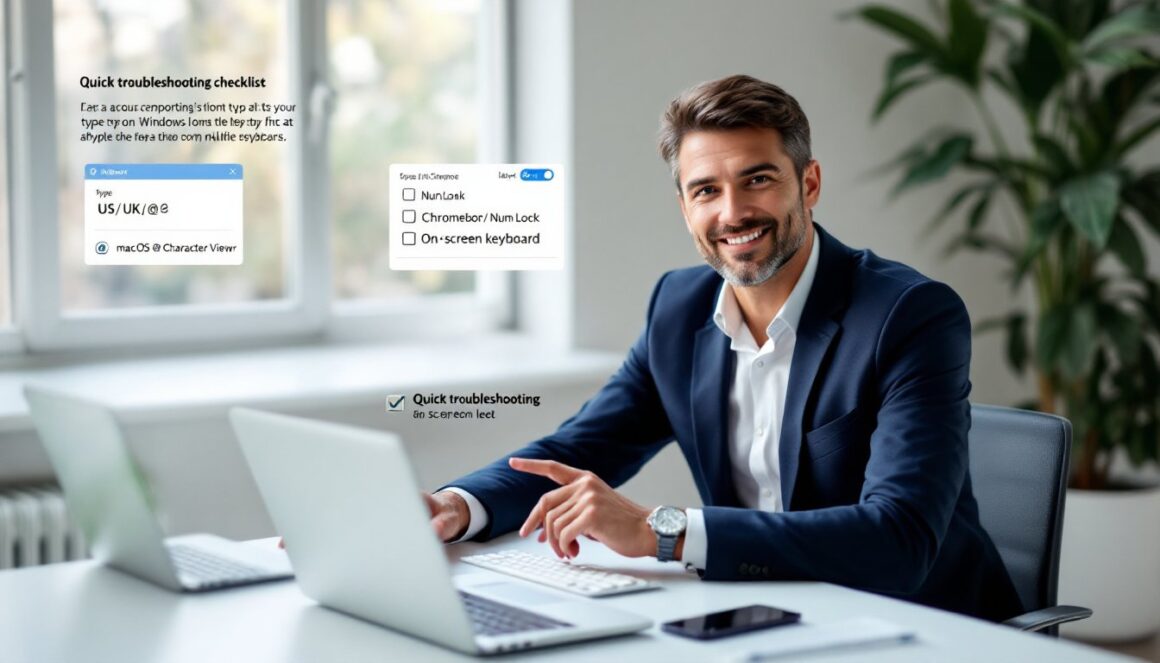
Checklist (try in order)
- Confirm the active keyboard layout in the OS input/language settings. The physical keycaps must match the layout setting.
- Verify Num Lock is on when using Alt codes.
- Test the on-screen/virtual keyboard (Windows On-Screen Keyboard, macOS Keyboard Viewer) to see which key produces @.
- Swap to another keyboard or USB port to rule out hardware failure.
Software and system checks
- If Windows won’t accept Alt codes system-wide, run sfc /scannow from an elevated Command Prompt to repair system files. This is a reasonable step if multiple keyboard functions fail.
- Remove stray input-method editors or keyboard utilities that remap keys: these are common culprits.
Sticky Keys, accessibility, and permissions
- Check accessibility settings: Sticky Keys or other accessibility options can alter modifier behavior.
- On managed (work) devices, keyboard mappings can be enforced by group policy, contact IT if settings are locked.
Last resort
If nothing works and the user suspects a deeper hardware or firmware issue, testing the keyboard on another machine rules out the computer. For laptops, a professional service visit might be required if built-in keyboard traces are damaged.
Conclusion
Typing the snabel a (@) is a small task with a few layout-dependent tricks: Shift + 2 on US layouts, AltGr + 2 or Ctrl + Alt + 2 on Swedish/Nordic Windows layouts, Option + 2 on Nordic Macs, and Alt + 64 as a reliable Alt-code fallback on Windows. When keys don’t behave, double-check the keyboard layout, Num Lock, and try the on-screen keyboard. With a quick settings check and the right modifier, the at sign is usually just one keystroke away.